
Getting Started
Deleting a Patient
Maintaining a clean workspace is essential for clinic efficiency. If a patient has completed their care or a duplicate ID was created by mistake, you can permanently remove the record from your dashboard.
3 sections
~2 min
Updated April 2026
Access the Patient Directory
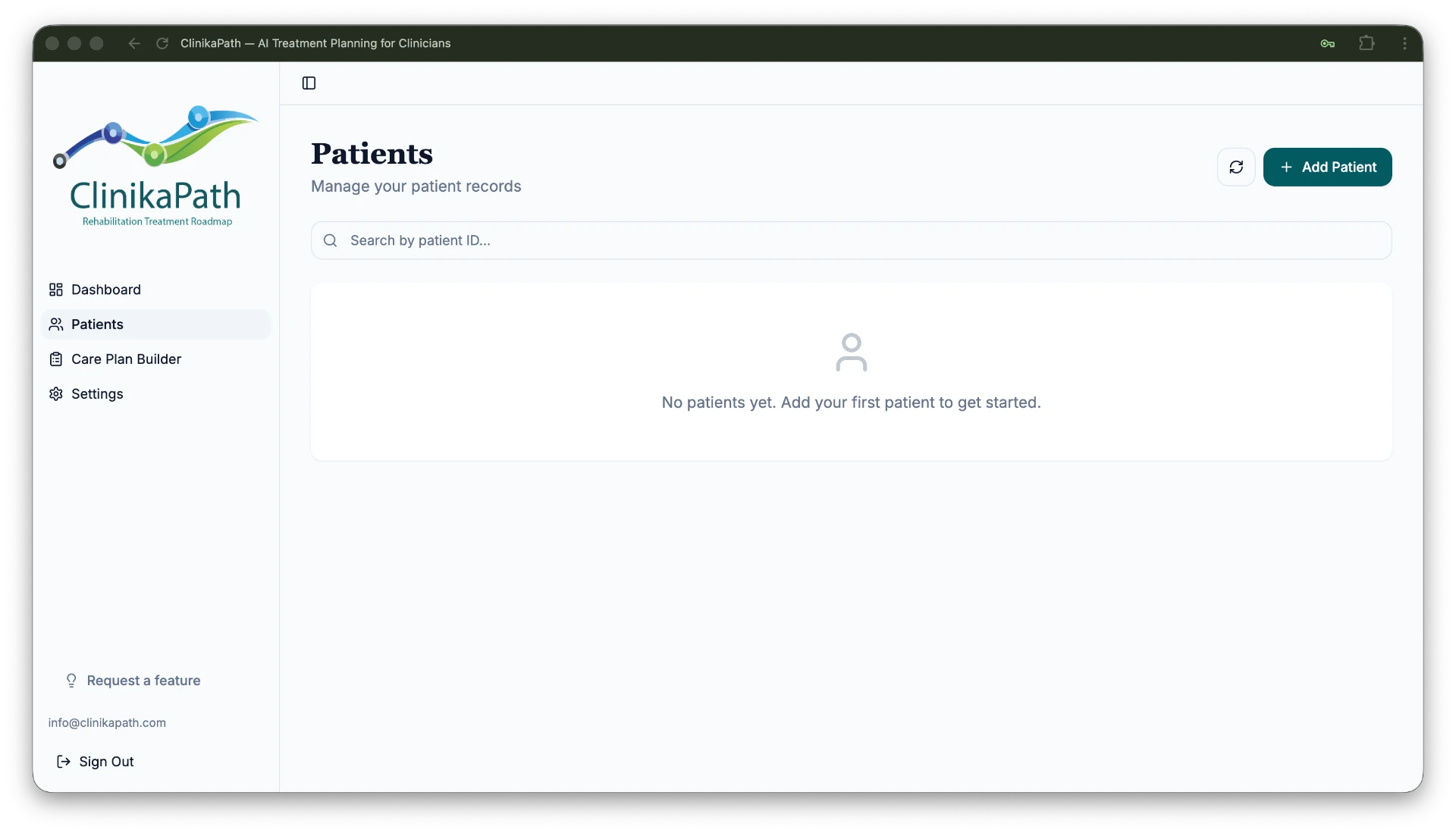
From the main navigation menu on the left, click on the Patients tab. This opens the Manage your patient records screen with your full list of active patient identifiers.
Locate the patient record
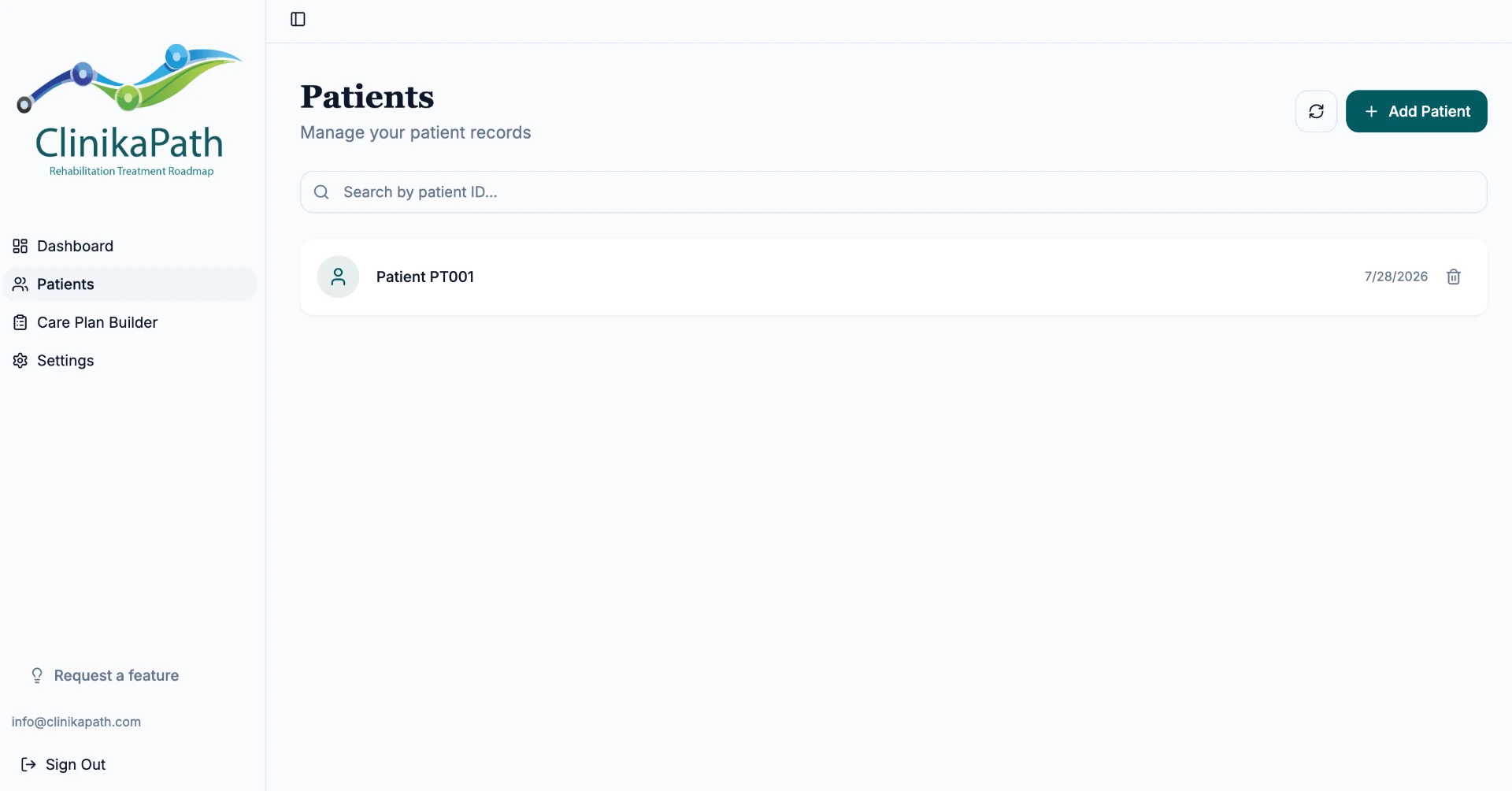
Scroll through your list or use the Search by patient ID... bar at the top of the screen to find the identifier you wish to remove — for example PT001.
Permanent deletion
On the far-right side of the patient's row, next to the creation date, you will see a trash can icon.
- Click the icon: a confirmation may appear to ensure you want to proceed.
- Confirm: once confirmed, the patient and all associated Care Plans will be immediately and permanently removed from the system.
Important considerations for clinic owners
- Irreversible action: deletion is permanent. Once a patient ID is deleted, the data cannot be recovered.