
Assign a New Care Plan
Open the patient profile
Every care plan is attached to a patient record, so start from the patient's profile.
- Click Patients in the left sidebar.
- Click the patient identifier you want to work with (e.g.
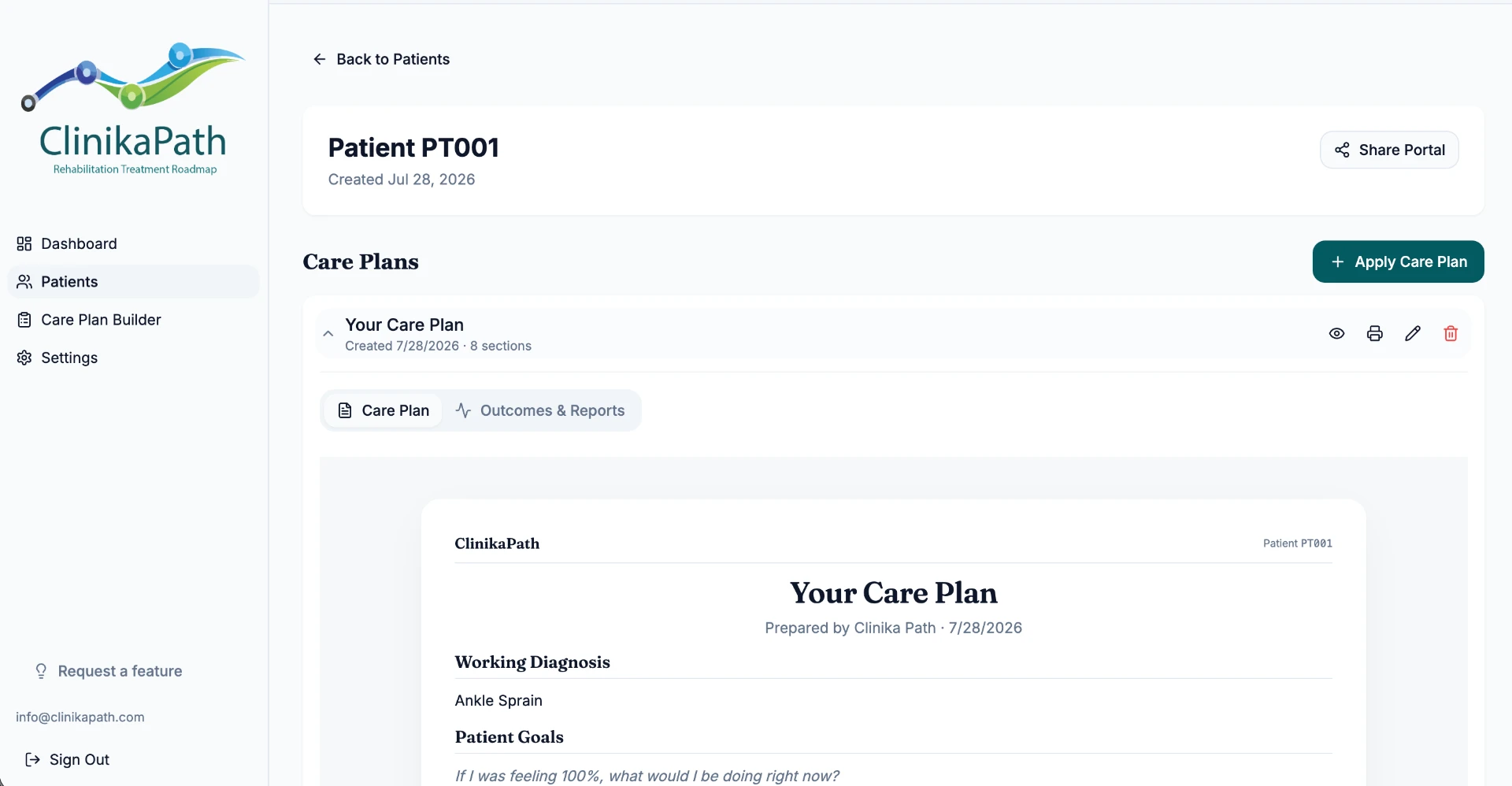
PT001) to open their profile. - If they have no plan yet, the Care Plans section shows "No care plans yet. Apply a template to get started."
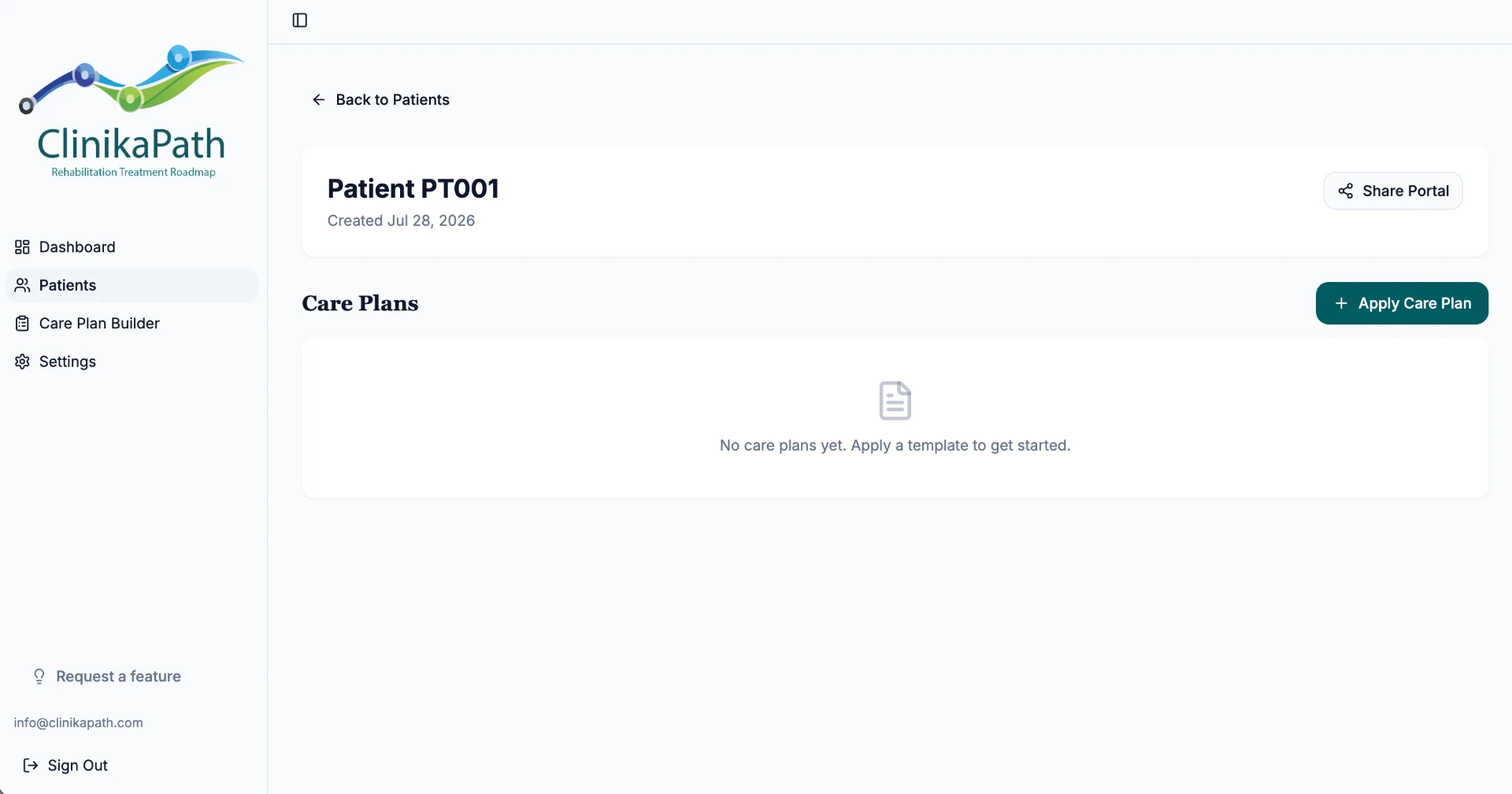
Click Apply Care Plan
On the right side of the Care Plans heading, click the teal + Apply Care Plan button. The Apply Care Plan Template window opens.
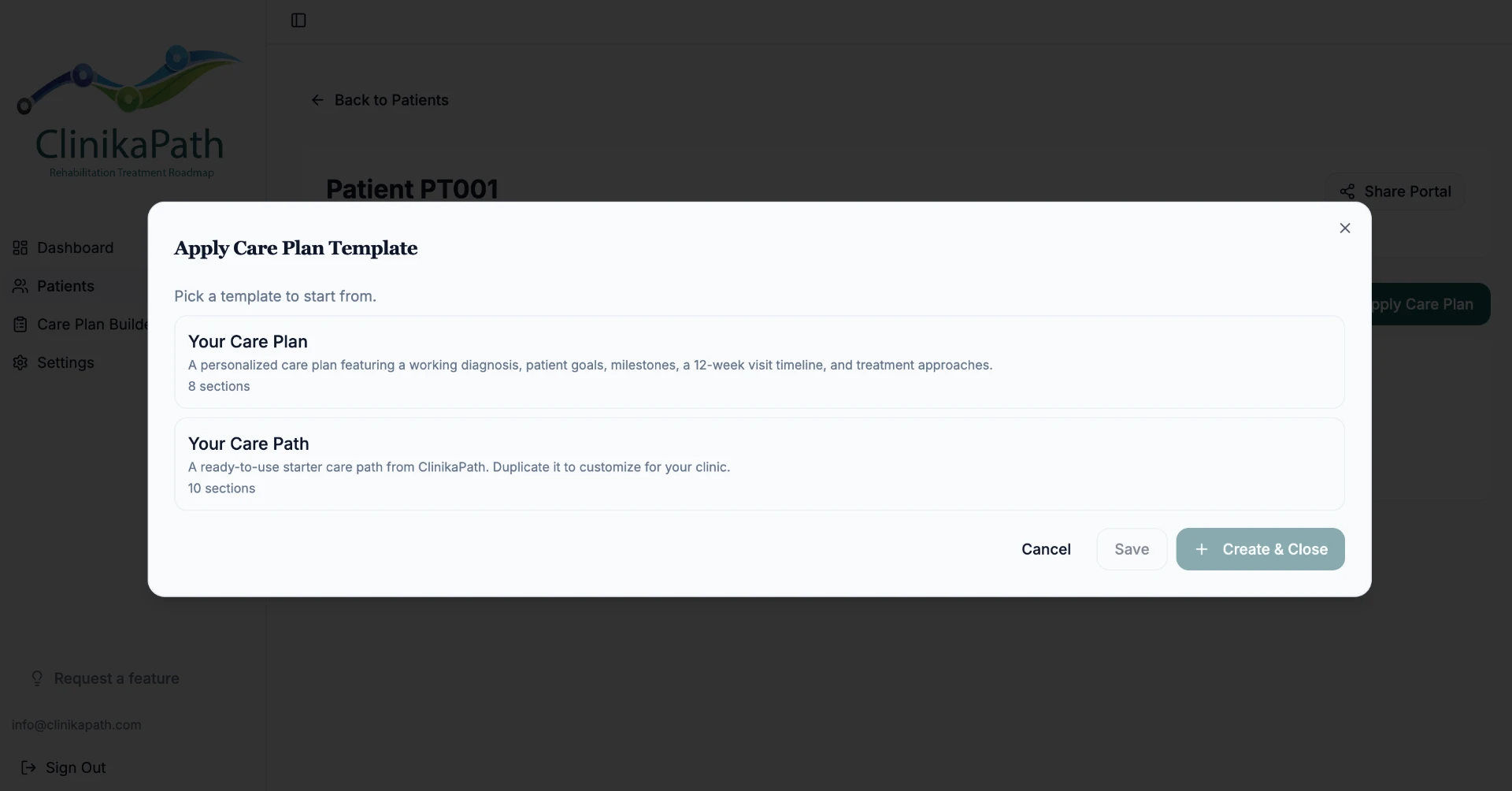
Pick a template to start from
The dialog lists every template available to your clinic, along with a short description and the number of sections it contains.
- Your Care Plan: a personalized plan with a working diagnosis, patient goals, milestones, a 12-week visit timeline, and treatment approaches.
- Your Care Path: a ready-to-use starter path from ClinikaPath — duplicate it to customize for your clinic.
- Click a template card to select it, then continue to the editor.
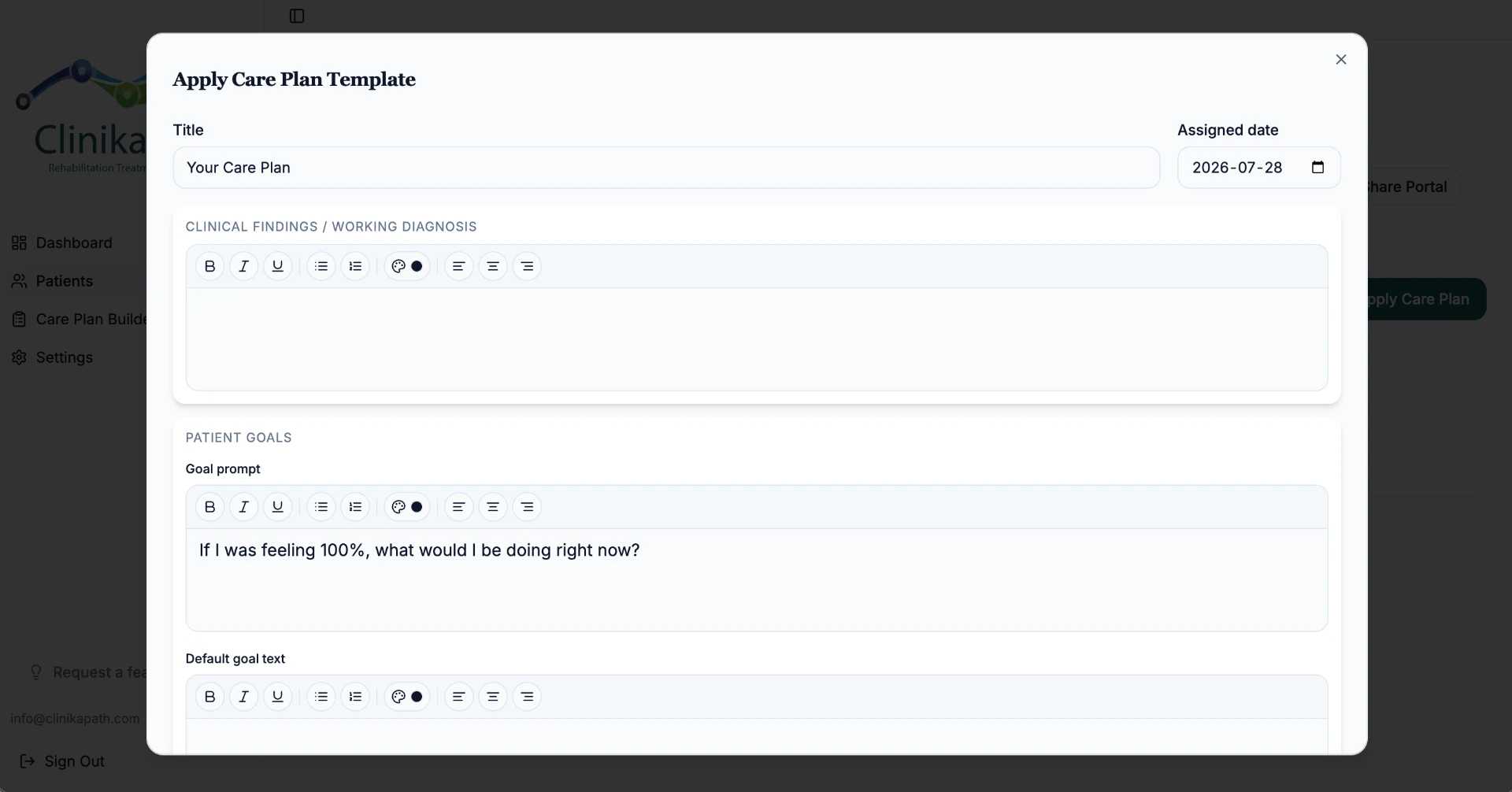
Fill in the plan content
Once a template is selected, the dialog expands into the editor where you complete each section.
- Title: rename the plan so it's easy to recognize later.
- Assigned date: set the start date for the plan — it defaults to today.
- Scroll to complete all the remaining sections.
Keep it Zero-PHI
Do not type patient names, initials, or other identifiers into any field. Describe the clinical condition and treatment parameters only — the patient identifier is the only link back to your own records.
Save or Create & Close
At the bottom of the dialog you have three actions:
- Save: keeps your work and leaves the editor open so you can keep filling in sections.
- Create & Close: saves the plan and returns you to the patient profile.
- Cancel: discards the plan without assigning it.
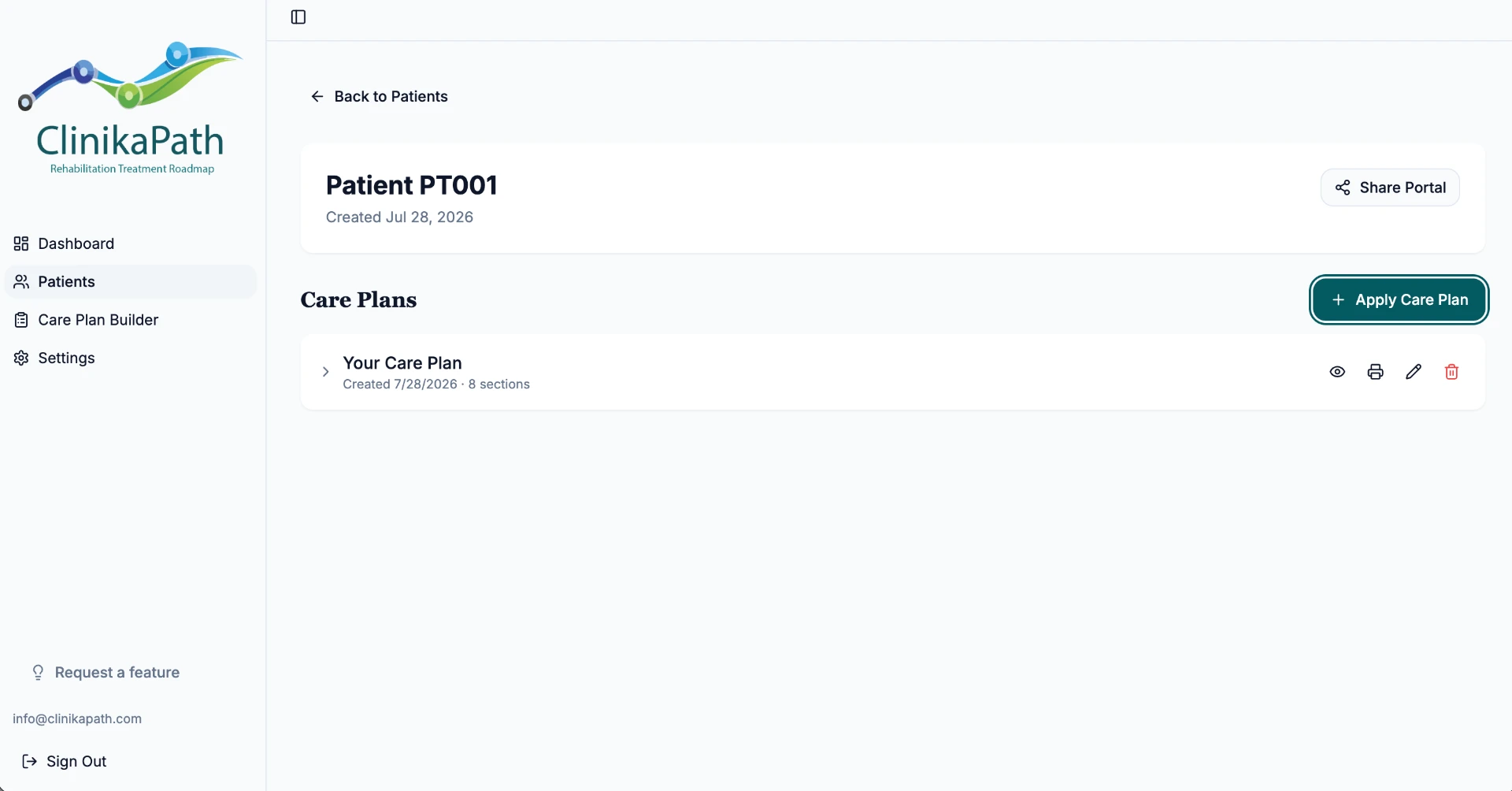
The new plan then appears in the Care Plans list with its creation date and section count.
Review, print, edit or share
Click the arrow beside the plan name to expand it. You'll see two tabs: Care Plan (the patient-facing document) and Outcomes & Reports.
- Eye icon: preview the plan exactly as the patient sees it.
- Printer icon: print or save the plan as a PDF.
- Pencil icon: reopen the editor to make changes.
- Trash icon: permanently delete the plan.
- Share Portal: at the top of the profile, generates a secure link your patient can open — no login required.
Quick tips for clinic owners
- Build once, reuse often: duplicate Your Care Path and customize it for your clinic so every new plan starts from your own wording.
- Save as you go: use Save rather than Create & Close while you're still filling in longer sections.