Creating a Care Plan Template
Open the Care Plan Builder
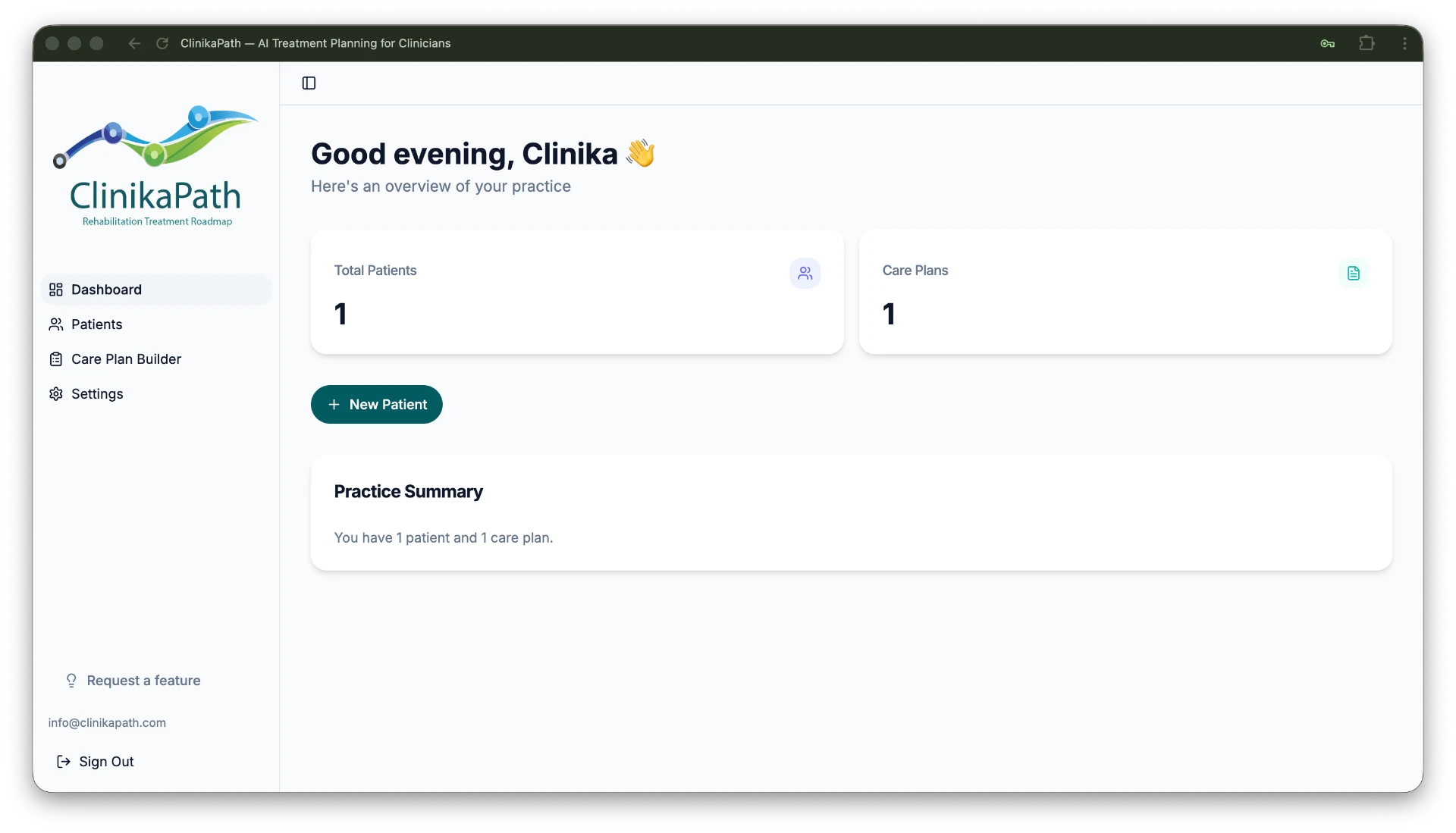
From your dashboard, click Care Plan Builder in the left-hand sidebar. This is where all of your reusable care plan templates live.
Start from a built-in care plan
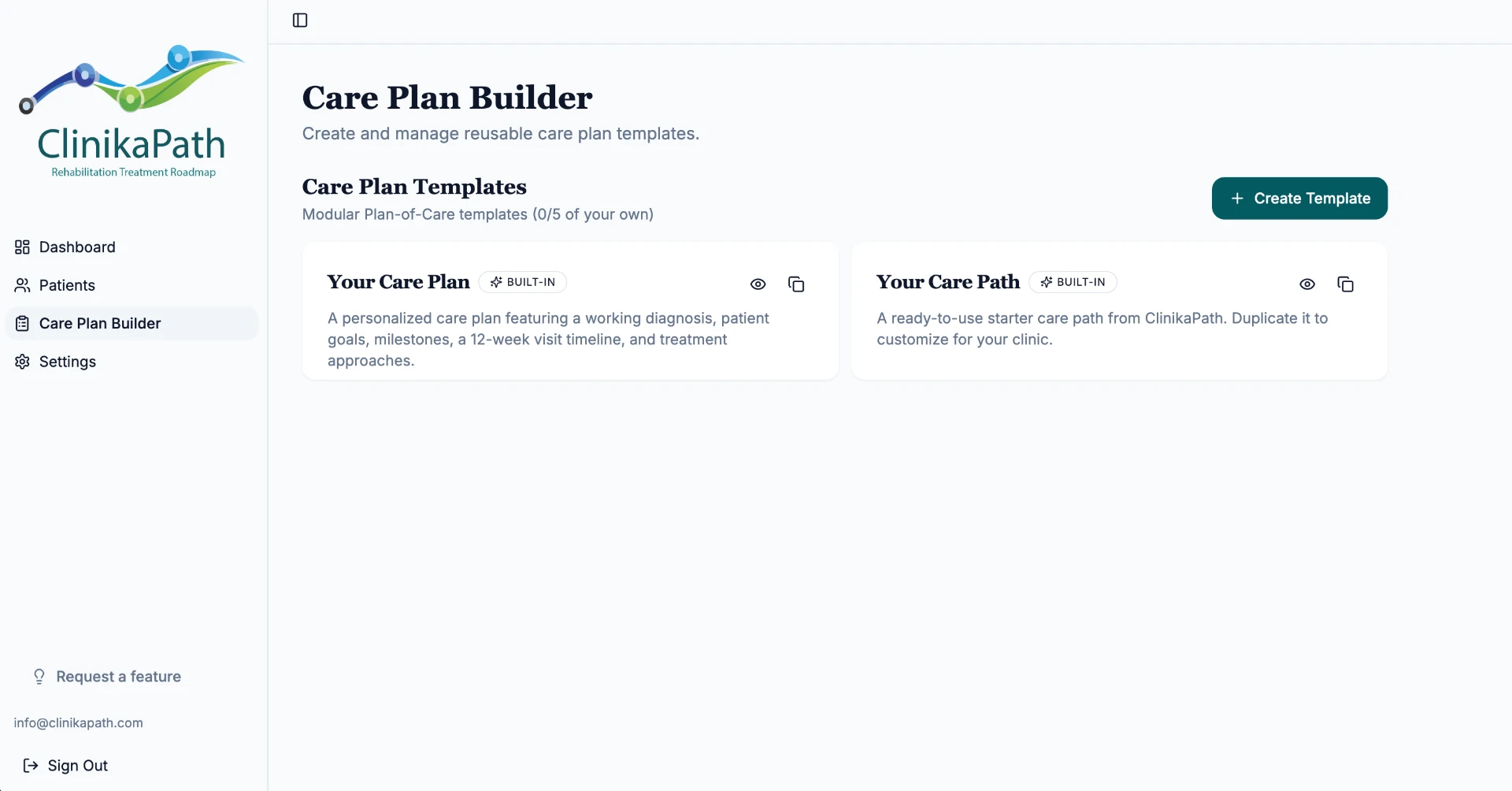
ClinikaPath ships with two built-in templates you can use right away. Both are marked BUILT-IN and cannot be edited or deleted — they always stay available as a clean starting point.
- Your Care Plan: a personalised care plan with a working diagnosis, patient goals, milestones, a 12-week visit timeline and treatment approaches.
- Your Care Path: a ready-to-use starter care path you can duplicate and customise for your clinic.
Use the eye icon to preview either one before you commit to it, or click + Create Template to start from a blank page instead.
Duplicate and delete your templates
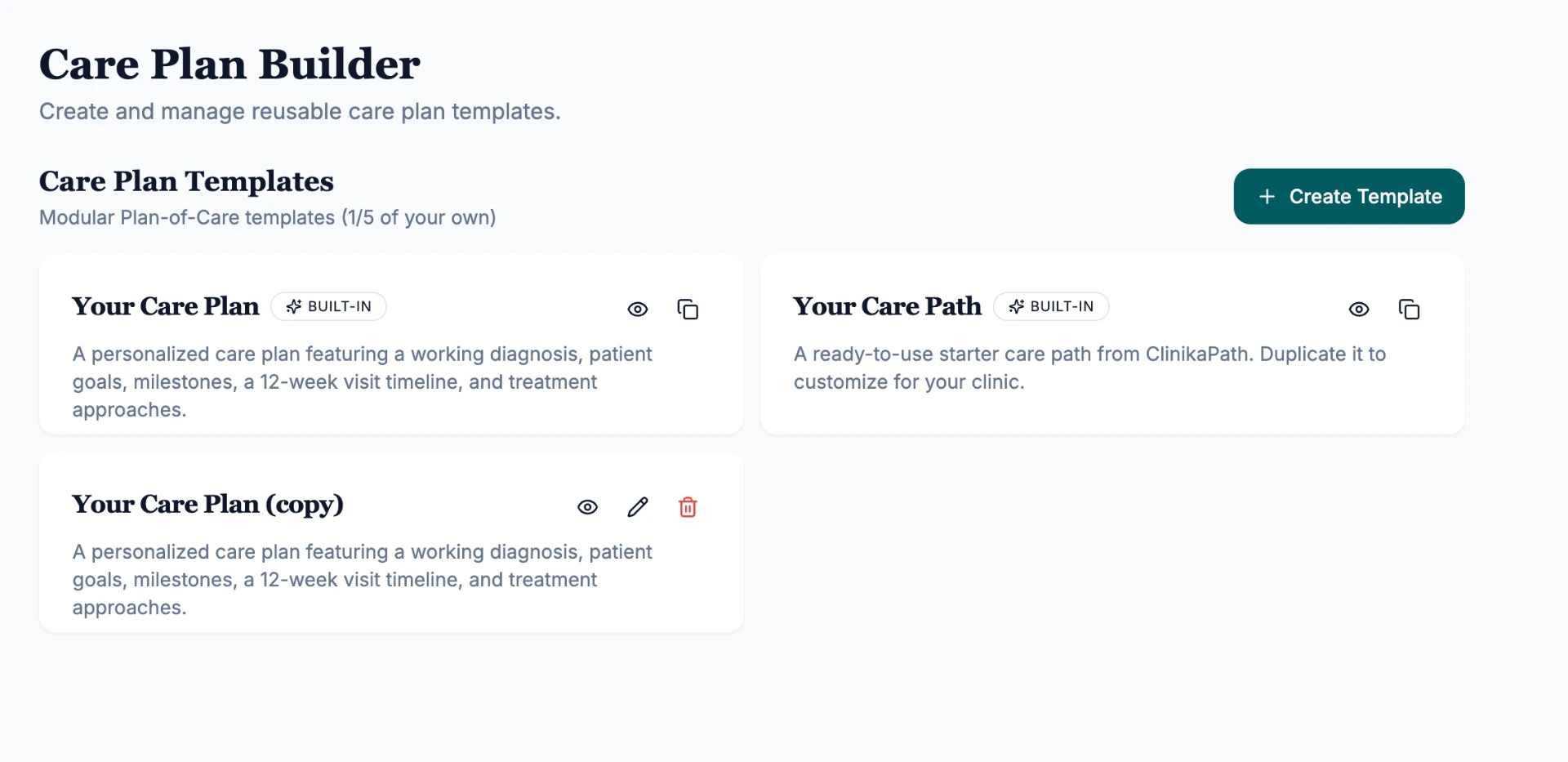
Click the duplicate icon on any template to create your own editable copy (for example Your Care Plan (copy)). Copies count toward your library allowance, shown in the counter under Care Plan Templates (e.g. 1/5 of your own).
- Eye icon: preview the template exactly as your patient would see it.
- Pencil icon: open your copy in the editor to rename it and change its sections.
- Red trash icon: permanently delete one of your own templates. Built-in templates have no delete option.
Who can create templates
Only the clinic owner can create, duplicate, edit or delete care plan templates. This keeps your clinic's protocols consistent and prevents accidental changes.
Every template the owner saves becomes available clinic-wide — all clinicians on the account can see it and assign it to their patients, but they cannot modify the template itself.
Name your template and add internal notes
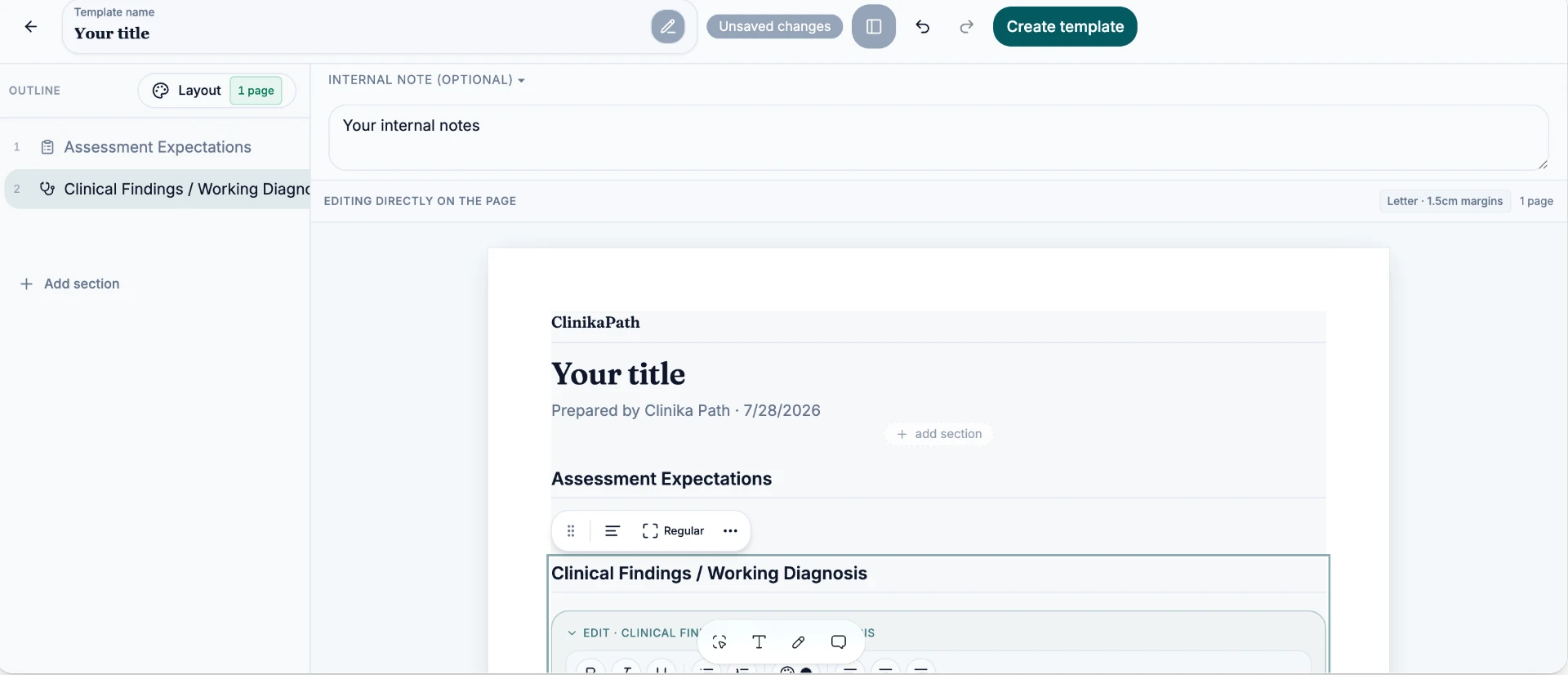
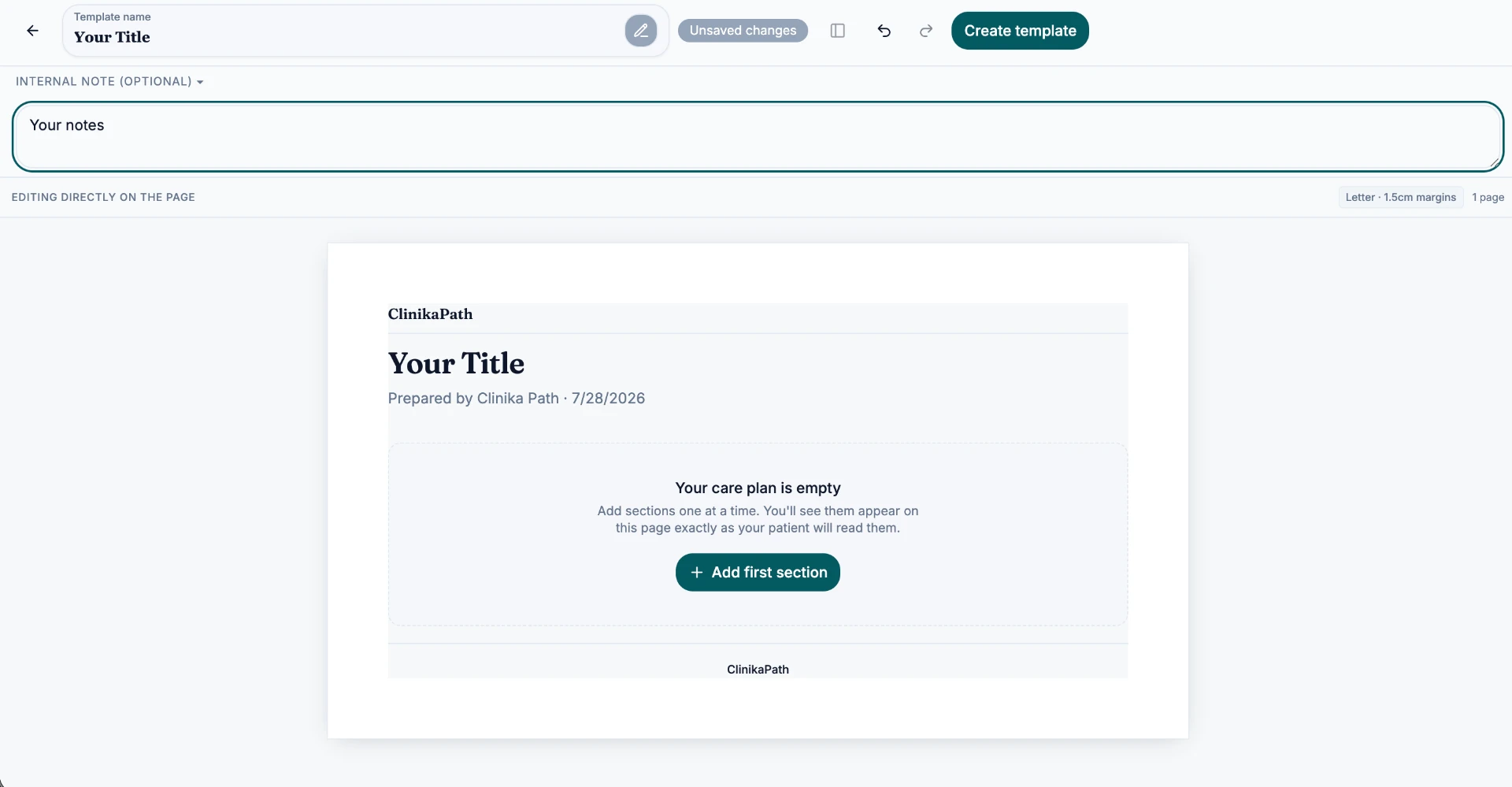
At the top of the editor, set the Template name and the title your patient will see on the document.
- Internal note (optional): notes for your team only — they never appear on the patient copy.
- You edit directly on the page, so the preview always matches exactly what your patient will read.
Add your first section
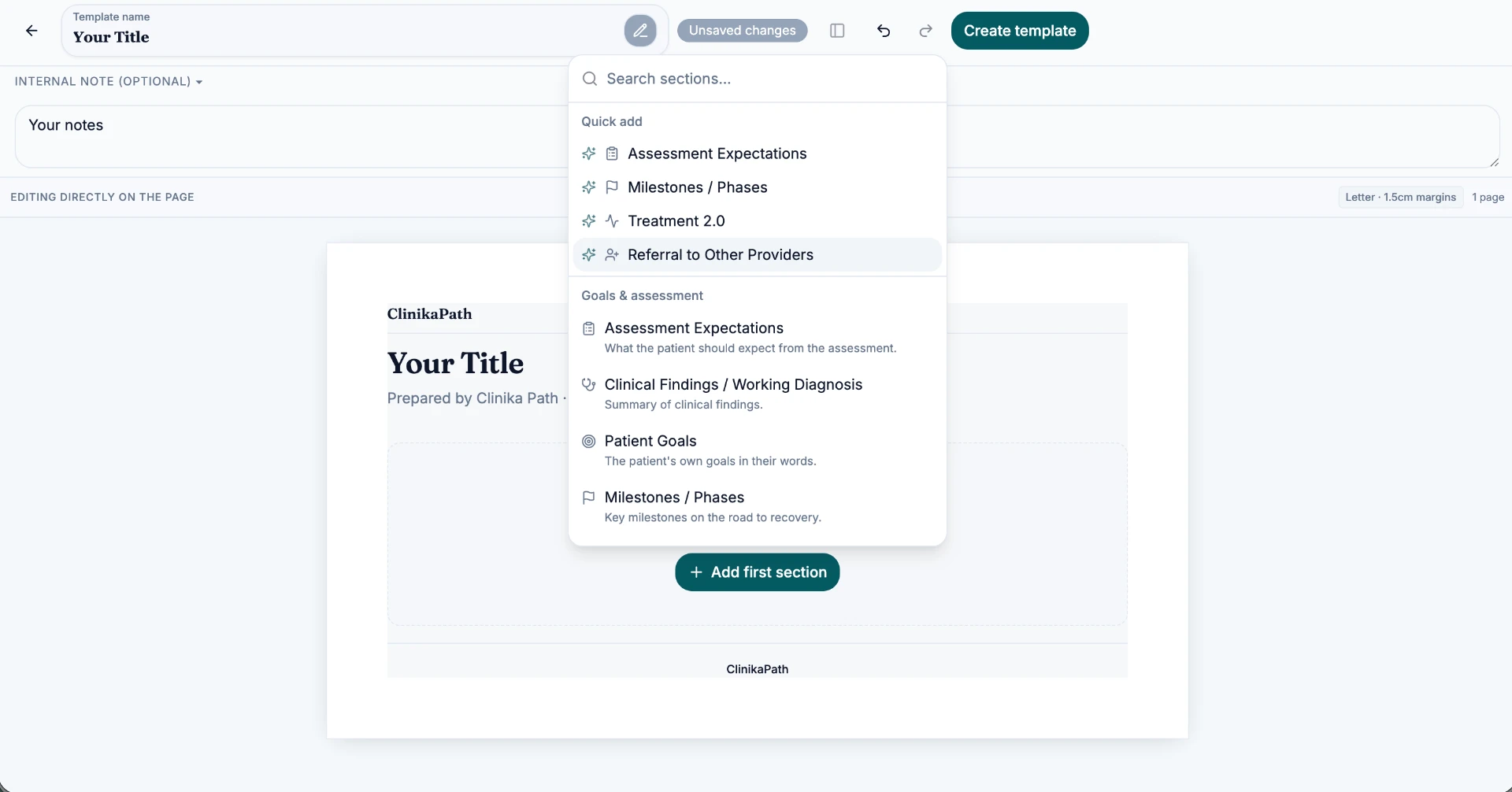
Click + Add first section to open the section picker. Search or choose from the ready-made blocks:
- Quick add: Assessment Expectations, Milestones / Phases, Treatment 2.0, Referral to Other Providers.
- Goals & assessment: Clinical Findings / Working Diagnosis, Patient Goals, Milestones / Phases and more.
Use the outline panel
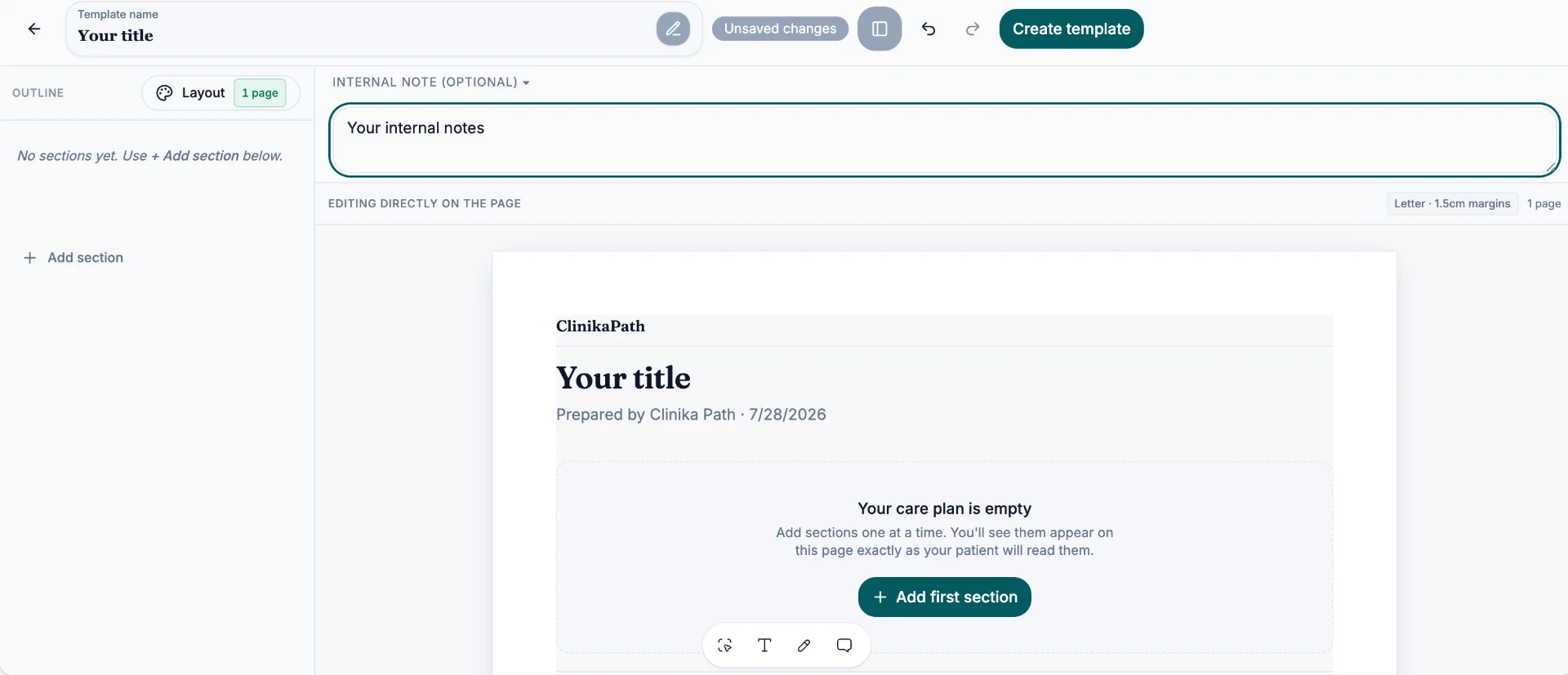
Toggle the side panel to open the Outline. It lists every section in order, lets you jump between them, reorder them, and add new ones with + Add section. The Layout button controls page size and margins.
Fill in each section and save
Click into any section on the page to edit it with the rich-text toolbar. Sections appear numbered in the outline as you build.
- Keep adding sections until the plan is complete.
- When you are happy, click Create template in the top-right corner. Your template is then available whenever you assign a new care plan to a patient.