
Creating a New Patient
Access the Patient Directory
From your main dashboard, click on Patients in the left-hand sidebar. This opens the Manage your patient records screen, where you can see all current active patient IDs and the dates they were created.
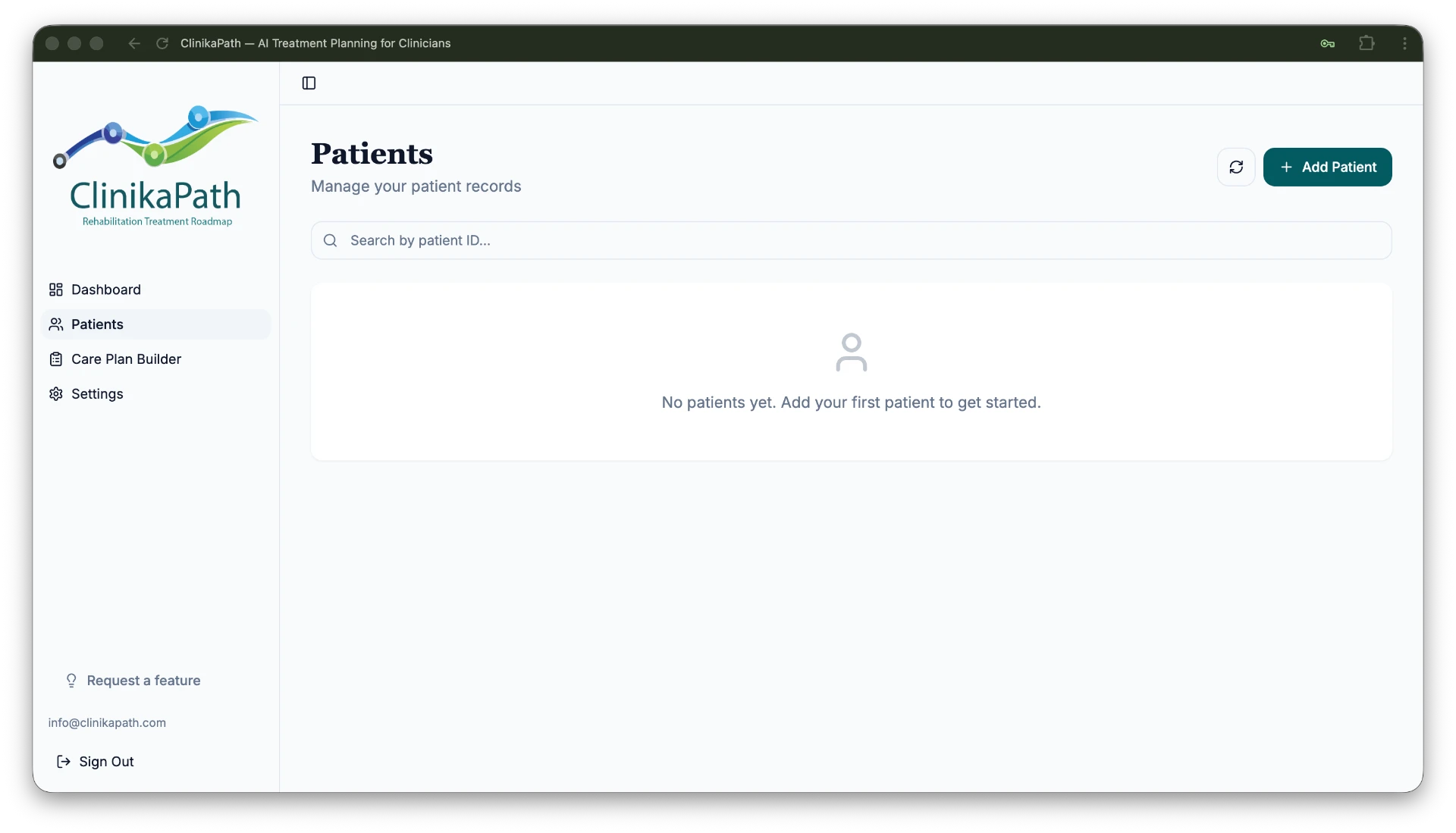
Open the "New Patient" dialog
In the top right corner of the Patients screen, click the + Add Patient button. The New Patient window opens and asks you for a unique identifier (maximum 10 characters).
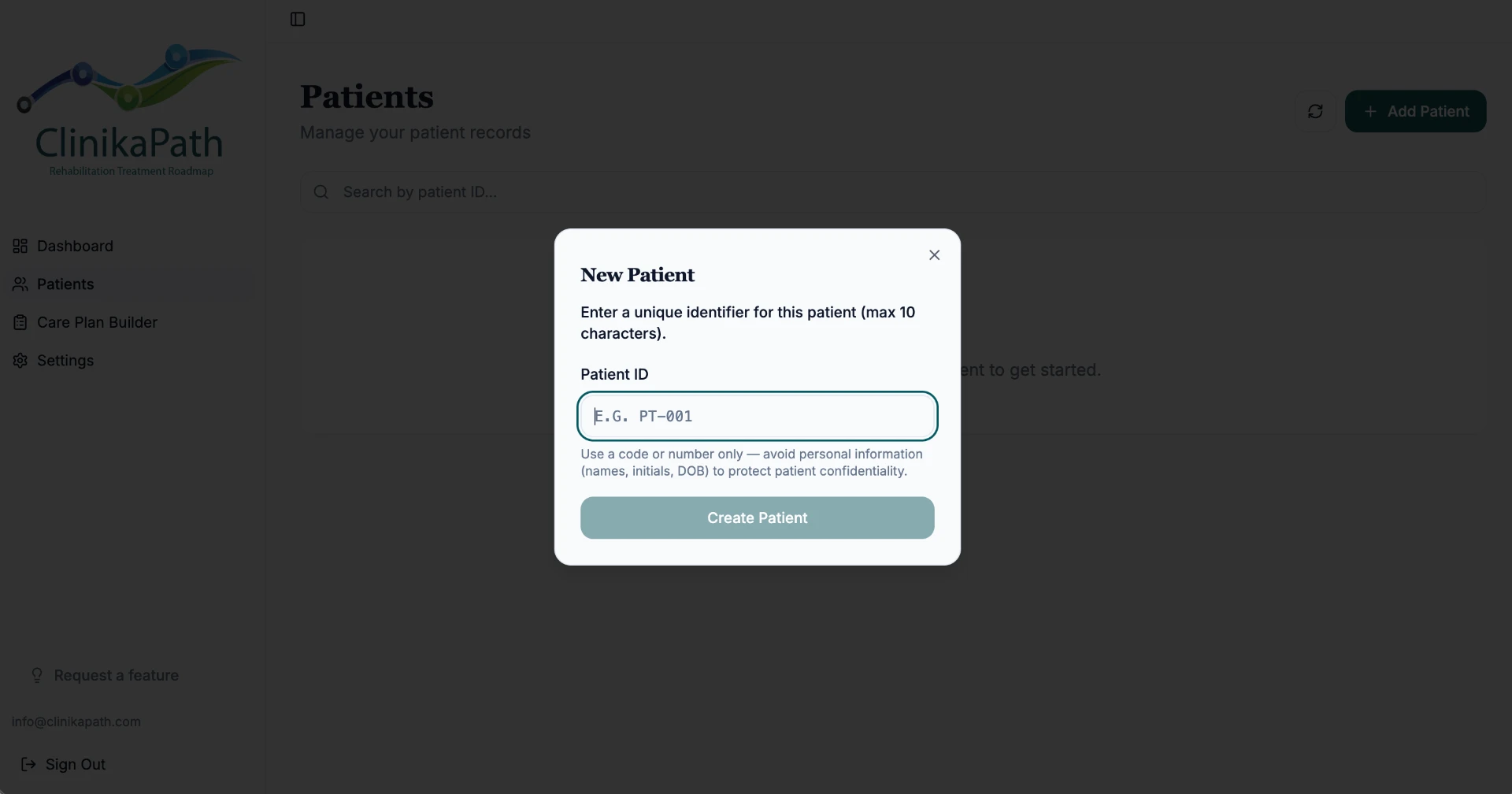
Generate a secure patient ID
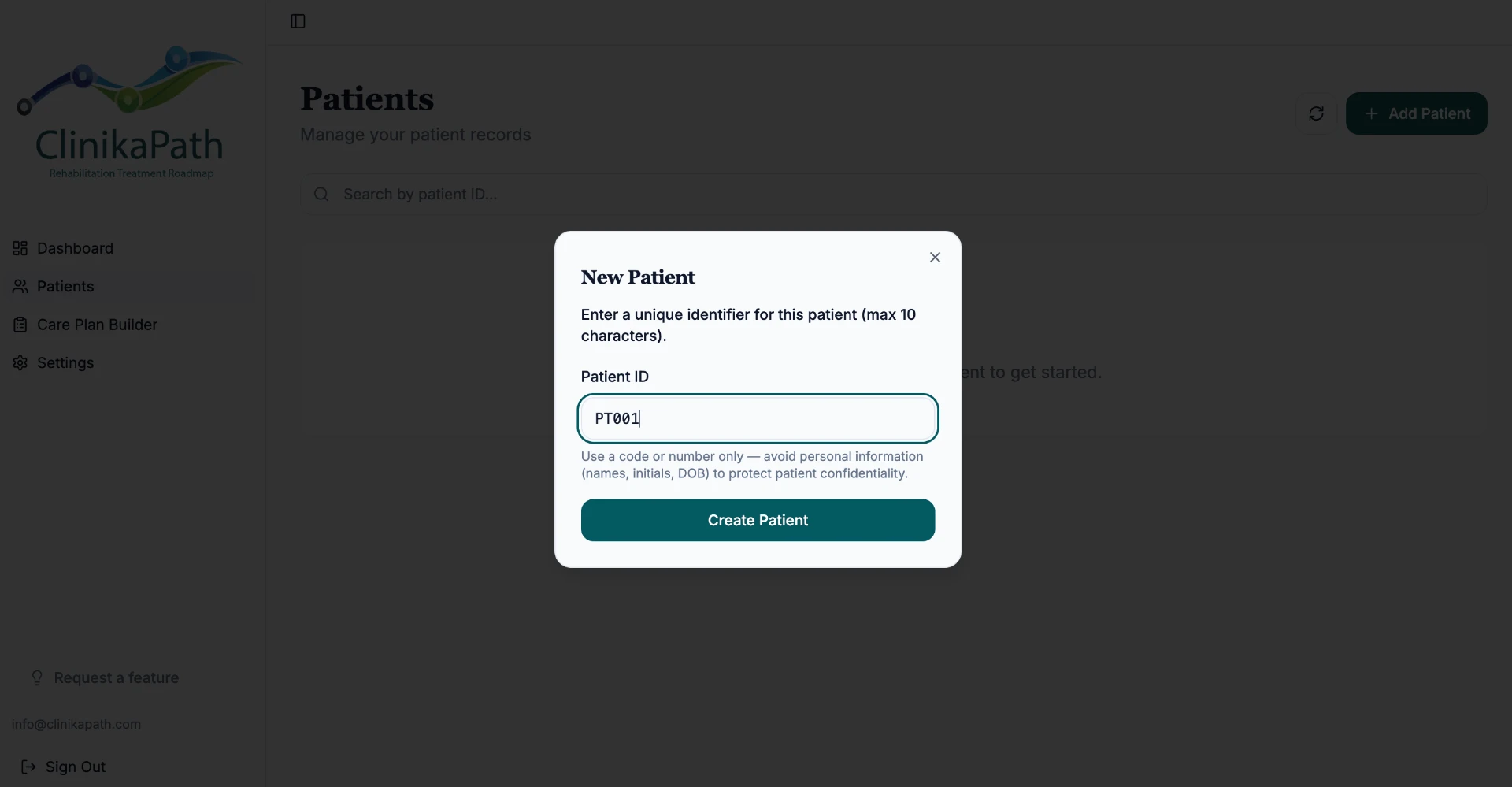
Type the identifier into the Patient ID field — for example PT001. The Create Patient button turns teal once a valid ID is entered.
- Do not use: names, initials, or dates of birth.
- Recommended format: a code that matches your internal filing system, such as
PT-2344orAN-009. - Confirm: click Create Patient to save the record.
Zero-PHI by design
ClinikaPath does not store names or identifiable data. You use a unique identifier to link treatment plans to your existing records.
More options for storing personal information are on our roadmap — details coming soon.
Viewing patients
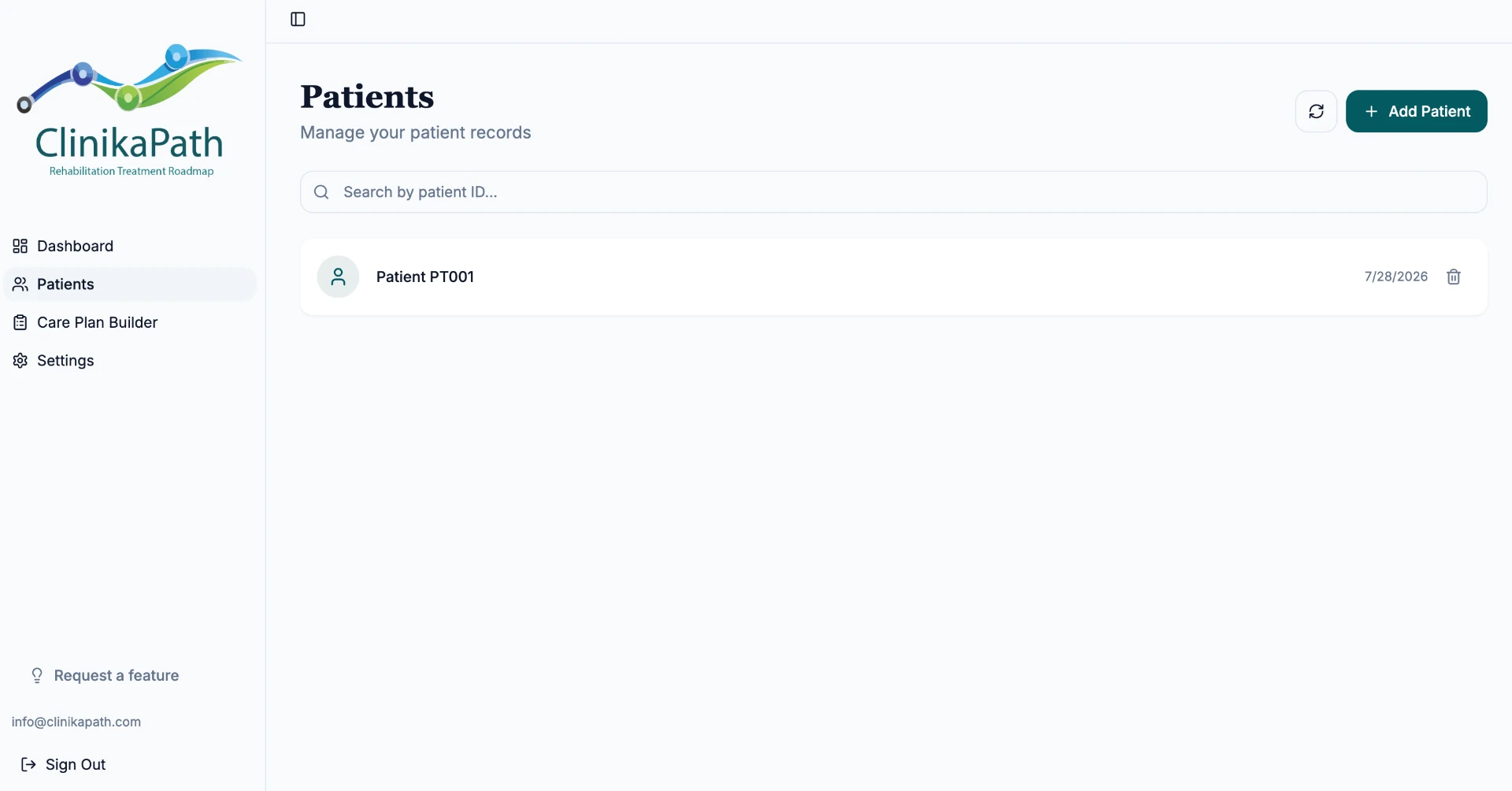
Once created, the new ID appears in your Recent Activity list on the dashboard and in your main Patient list. You're now ready to select that patient and click Create Treatment Plan to begin generating their visual treatment plan.
Quick tips for clinic owners
- Consistency: if you use an EMR, we recommend reusing the Patient ID from the EMR profile so it's easy to find the patient again later.