
Styling a Care Plan: Layout, Fonts & Colours
Where to find the Layout panel
Inside the Care Plan Builder, the Layout button sits at the top of the Outline column, next to the live page count. It opens a styling panel that controls how the whole document looks — colours, fonts, surface, header and spacing.
- Every change previews instantly on the page beside the panel.
- Styling is saved with the template, so every plan built from it looks the same.
- Nothing is committed until you press Update — watch for the Unsaved changes badge.
1. Presets and accent colour
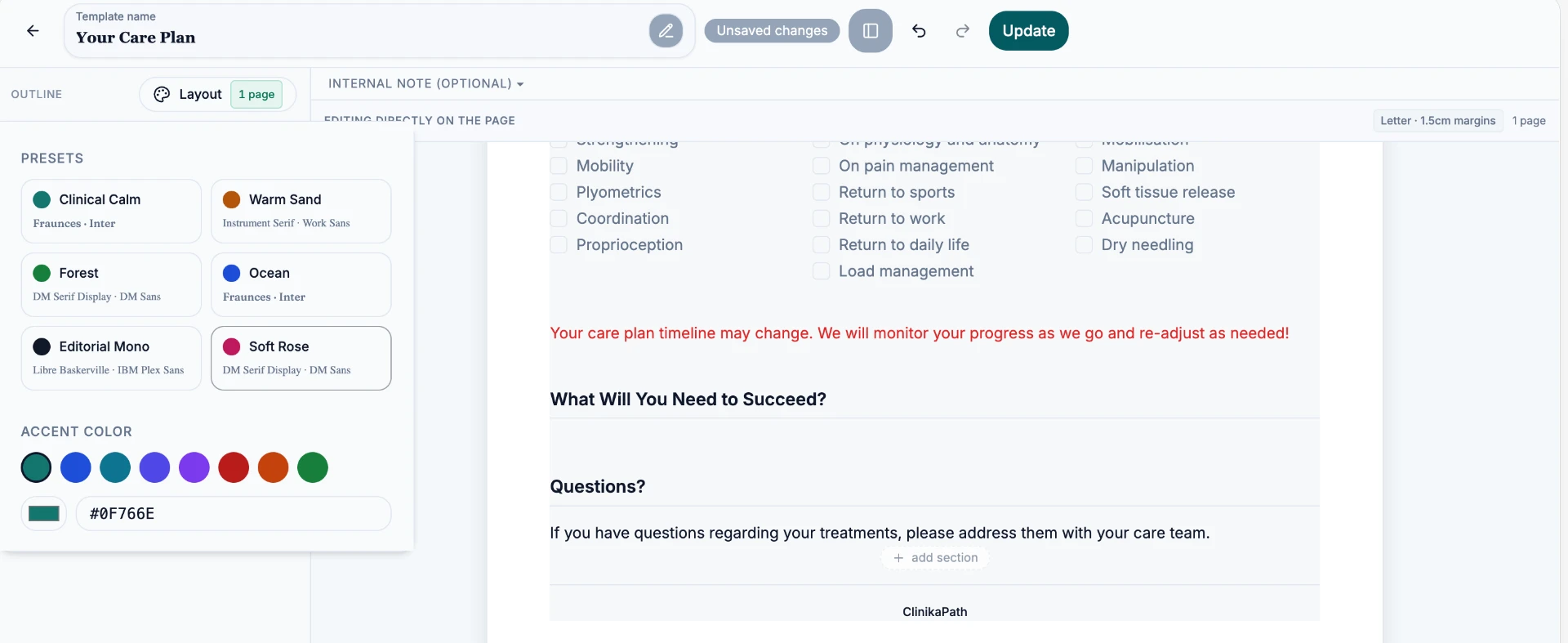
The fastest way to restyle a plan is a preset — a matched pairing of heading font, body font and colour:
- Clinical Calm — Fraunces · Inter, a soft teal default.
- Warm Sand — Instrument Serif · Work Sans.
- Forest and Ocean — DM Serif Display · DM Sans and Fraunces · Inter in green and blue.
- Editorial Mono — Libre Baskerville · IBM Plex Sans.
- Soft Rose — DM Serif Display · DM Sans.
Under Accent colour, pick one of the eight swatches or type an exact hex value (e.g. #0F766E) to match your clinic branding. The accent drives headings, dividers and highlights.
Match your clinic logo
2. Typography
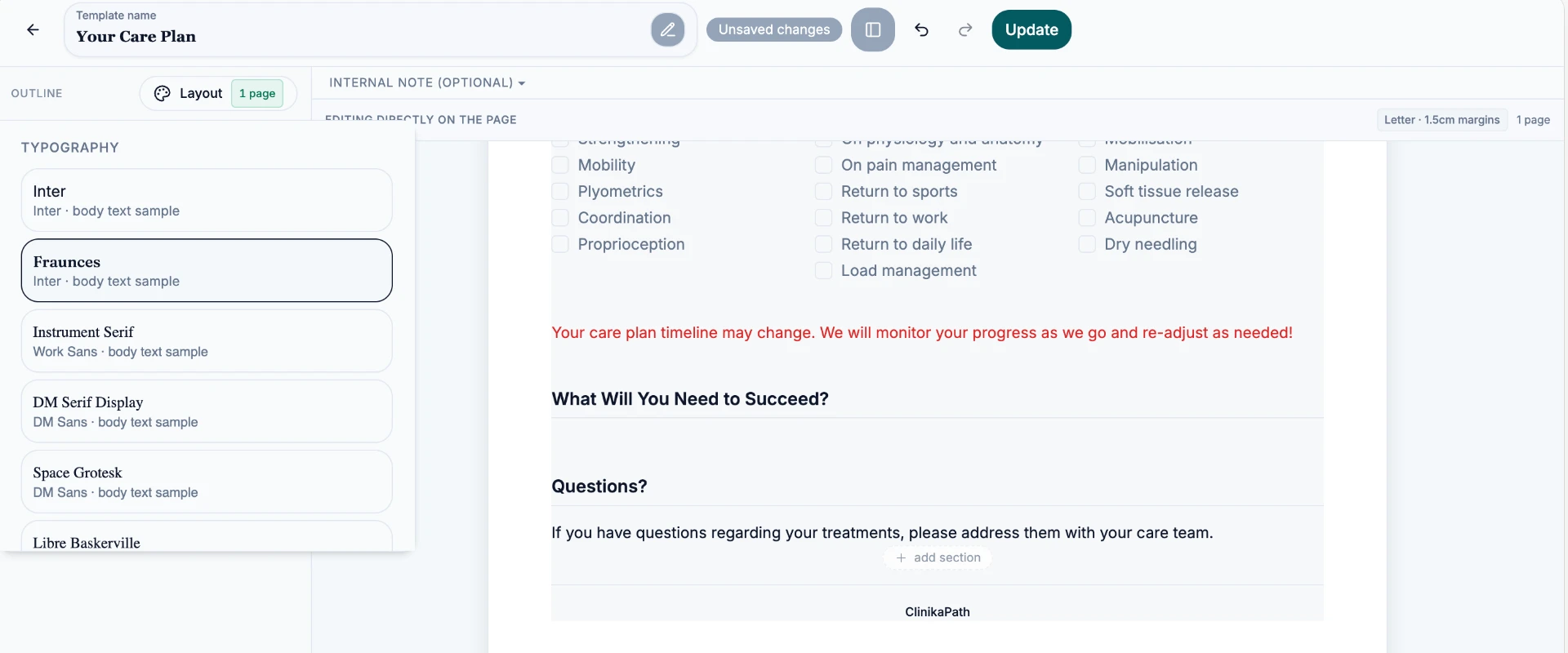
The Typography list lets you override the preset's heading font while keeping a readable body face. Each row previews the heading name in its own font with a body text sample underneath.
- Inter — clean and neutral, the safest all-rounder.
- Fraunces — warm serif headings over Inter body text.
- Instrument Serif — editorial headings with Work Sans.
- DM Serif Display and Space Grotesk — both paired with DM Sans.
- Libre Baskerville — traditional, print-like feel.
Choose one that stays legible at print size — the patient may read this on paper.
3. Surface, header and alignment
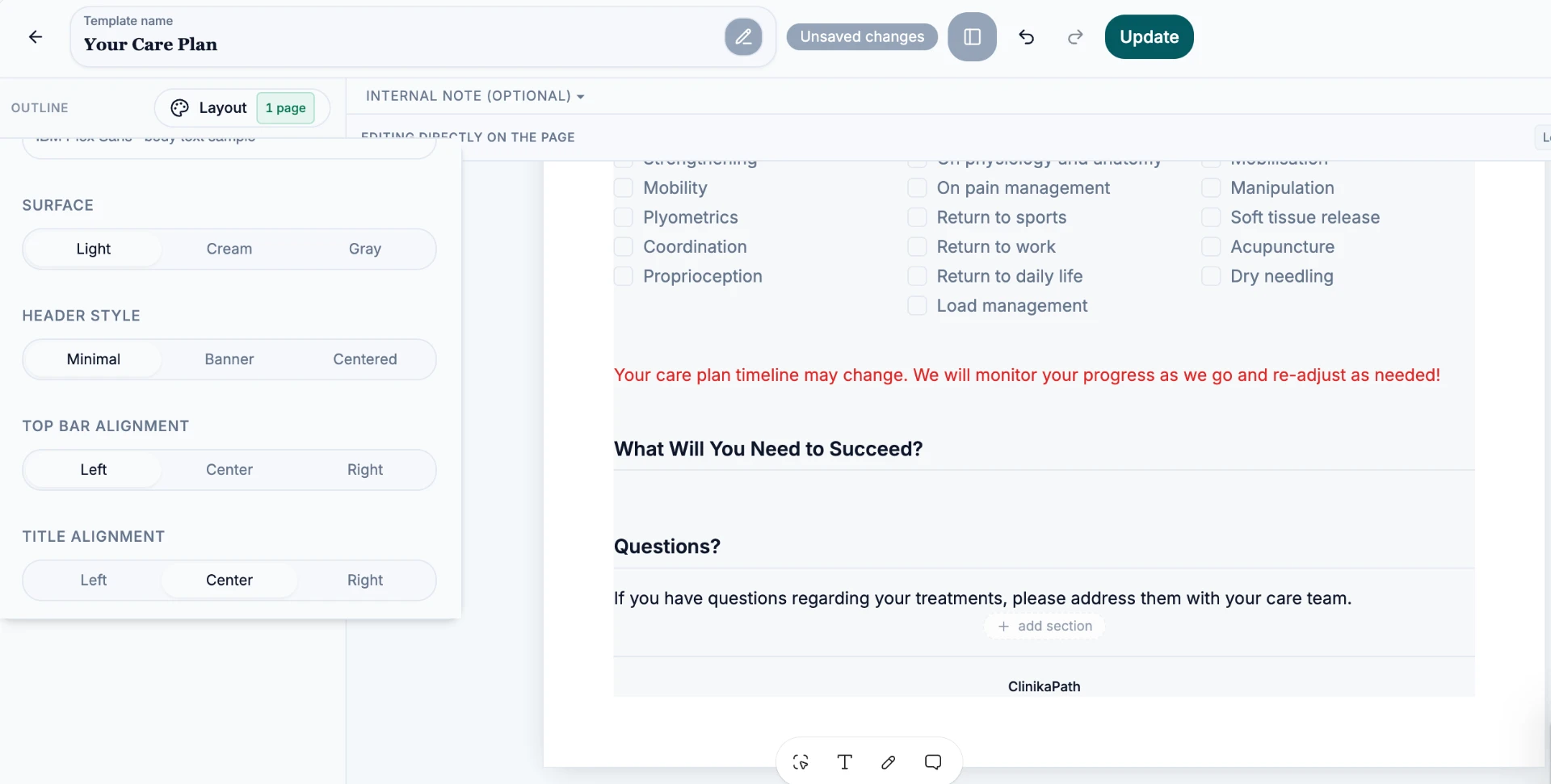
The middle of the panel controls the page frame:
- Surface — Light, Cream or Gray page background. Cream reads warmer in print; Gray adds subtle contrast on screen.
- Header style — Minimal (a thin line), Banner (a filled accent bar) or Centered.
- Top bar alignment — where the clinic name and logo sit: Left, Center or Right.
- Title alignment — the same three options for the plan title itself.
4. Density and section spacing
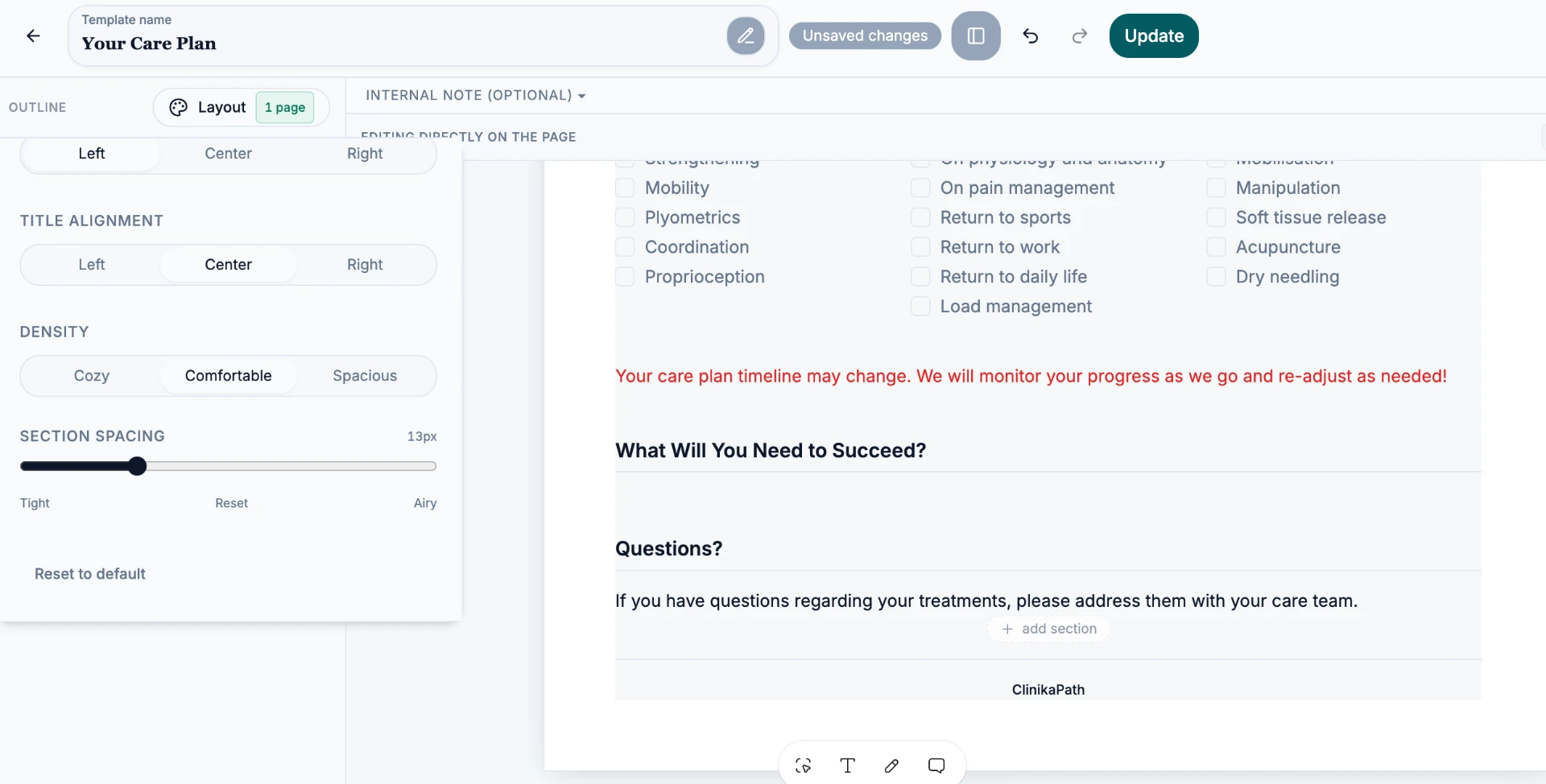
The bottom of the panel decides how much of the plan fits on a page:
- Density — Cozy compresses everything, Comfortable is the default, Spacious gives the page room to breathe.
- Section spacing — a slider from Tight to Airy with the exact value shown in pixels (e.g. 13px). Use Reset to return to the default gap.
- Reset to default at the bottom undoes every styling choice in the panel at once.
Keep an eye on the page counter next to the Layout button — tightening density and spacing is usually enough to pull a two-page plan back onto one page.
One page is the goal
Quick tips for clinic owners
- Start from a preset, then override only the accent colour to match your clinic branding.
- Set the styling inside a template so every clinician's plans look identical.
- Check the page counter after each change — density and spacing are the quickest way to stay on one page.
- Reset to default restores the original look if you go too far.